
Setup reference for agents and manual configuration
The README provides the copy-and-paste setup request. Use this reference for exact environment variables, manual installation, LAN settings, and troubleshooting. Preserve the user's existing MCP configuration and use the current harness's supported configuration format.
Installation
Prerequisites
- Node.js 24 (the version used by CI and release workflows)
- npm
- A Bambu-compatible slicer (only needed to slice): FULU OrcaSlicer-bambulab, OrcaSlicer, or Bambu Studio. A pre-sliced 3MF can be printed without installing a slicer on the MCP host. See the FULU guide for CLI and bridge requirements.
- ffmpeg (only for RTSP camera snapshots), configured in
PATHor throughFFMPEG_PATH.
FULU/Orca: GUI export and CLI slicing are available. From 1.1.11, CLI slicing requires the exact machine preset and matching BBL profile tree, with the same preparation checks as BambuStudio. See CLI setup and validation limits.
Run without installing (npx)
The fastest way to get started. No global install required:
npx bambu-printer-mcpSet environment variables inline or via a .env file in your working directory (see Configuration).
Install globally from npm
npm install -g bambu-printer-mcpAfter installation, the bambu-printer-mcp command is available in your PATH.
Install from source
git clone https://github.com/DMontgomery40/bambu-printer-mcp.git
cd bambu-printer-mcp
npm install
npm run build
npm link
npm link makes the bambu-printer-mcp binary available globally without publishing to npm.
Configuration
Create a .env file in the directory where you run the server, or pass environment variables directly in your MCP client config. All printer connection variables can also be passed as tool arguments on a per-call basis, which is useful when working with multiple printers.
# --- Direct LAN connection (required for local printer tools) ---
PRINTER_HOST=192.168.1.100        # IP address of your Bambu printer on the local network
BAMBU_SERIAL=01P00A123456789      # Printer serial number (see Finding Your Serial Number below)
BAMBU_TOKEN=your_access_token     # LAN access token from printer touchscreen
# Compatible aliases also accepted:
# BAMBU_PRINTER_HOST / BAMBU_PRINTER_SERIAL / BAMBU_PRINTER_ACCESS_TOKEN

# --- Printer model (CRITICAL for safe operation) ---
BAMBU_MODEL=p1s                   # Your printer model: p1s, p1p, p2s, x1c, x1e, a1, a1mini, h2d, h2s, h2c, x2d
# Alias also accepted: BAMBU_PRINTER_MODEL
BED_TYPE=textured_plate           # Bed plate type: textured_plate, cool_plate, engineering_plate, hot_plate, supertack_plate
NOZZLE_DIAMETER=0.4               # Nozzle diameter in mm (default: 0.4)

# --- Slicer configuration (required for slice_stl and print_3mf auto-slice) ---
SLICER_TYPE=bambustudio           # Also: orcaslicer-bambulab (FULU), orcaslicer, prusaslicer, cura, slic3r
SLICER_PATH=/Applications/BambuStudio.app/Contents/MacOS/BambuStudio
                                  # Default on macOS. Adjust for your OS and install path.
# BAMBU_STUDIO_PATH supplies the BambuStudio executable default only
SLICER_PROFILE=                   # Optional: path to a slicer profile/config file

# --- Temporary file directory ---
# TEMP_DIR=                      # Leave unset for a private OS temp directory per server instance.

# --- MCP transport ---
MCP_TRANSPORT=stdio               # Options: stdio (default), streamable-http

# --- Streamable HTTP transport (only used when MCP_TRANSPORT=streamable-http) ---
MCP_HTTP_HOST=127.0.0.1
MCP_HTTP_PORT=3000
MCP_HTTP_PATH=/mcp
MCP_HTTP_STATEFUL=true
MCP_HTTP_JSON_RESPONSE=true
MCP_HTTP_ALLOWED_ORIGINS=http://localhost

# --- Optional standard Blender MCP server ---
BLENDER_MCP_COMMAND=uvx          # Executable or full path; no shell command string
BLENDER_MCP_ARGS='["blender-mcp"]'
BLENDER_MCP_TIMEOUT_MS=120000
# Start the matching MCP addon inside Blender.
# Legacy custom executable bridge (optional): BLENDER_MCP_BRIDGE_COMMAND=
Environment variables reference
| Variable | Default | Required | Description |
|---|---|---|---|
PRINTER_HOST | localhost | Direct LAN | IP address of the Bambu printer. Alias: BAMBU_PRINTER_HOST |
BAMBU_SERIAL | Direct LAN | Printer serial number. Alias: BAMBU_PRINTER_SERIAL | |
BAMBU_TOKEN | Direct LAN | LAN access token. Alias: BAMBU_PRINTER_ACCESS_TOKEN | |
BAMBU_MODEL | Slicing and printing | Printer model: p1s, p1p, p2s, x1c, x1e, a1, a1mini, h2d, h2s, h2c, x2d. Required for model-specific routing and preset selection; it does not itself validate a pre-sliced file or prove a successful physical print. X2D supports status and slicing; print_3mf can use the optional checked native eMMC helper on macOS or x86-64 Linux (Linux setup). Windows native printing and legacy X2D FTPS/remote-file starts remain unsupported. Alias: BAMBU_PRINTER_MODEL. If omitted and the MCP client supports elicitation, the server will ask you interactively. Use h2c for H2C and x2d for X2D; do not use h2d as a fallback. | |
BED_TYPE | textured_plate | No | Bed plate type: textured_plate, cool_plate, engineering_plate, hot_plate, supertack_plate |
NOZZLE_DIAMETER | 0.4 | No | Nozzle diameter in mm. Used to select the correct model/nozzle machine preset. |
BAMBU_NOZZLE_TYPE | model preset's stock nozzle | No | Installed nozzle for slicing: stainless_steel, hardened_steel, tungsten_carbide, or brass. Set it if you replaced the stock nozzle; printing requires the job's nozzle type to match the printer's report. |
BAMBU_NOZZLE_VOLUME_TYPE | standard | No | Installed nozzle flow type for slicing: standard or high_flow. Set high_flow if a High Flow nozzle is installed; printing requires the job's flow type to match the printer's report. |
BAMBU_DISPATCH_CHECK_MS | 15000 | No | How long to watch the printer's reports after an MQTT print command to confirm it started or was refused (0 to 60000; 0 skips the check). |
SLICER_TYPE | bambustudio | No | bambustudio, orcaslicer-bambulab (FULU), orcaslicer, prusaslicer, cura, or slic3r |
SLICER_PATH | Platform default for the selected slicer | No | Full path to the slicer executable. BAMBU_STUDIO_PATH supplies the BambuStudio default only |
SLICER_PROFILE | No | Process profile/config file; BAMBU_SLICER_PROFILE takes precedence. Does not replace the required machine preset for BambuStudio, Orca, or FULU | |
BAMBU_DEV_ID | Bridge printing | Fallback device ID when no serial is resolved; an explicit dev_id tool argument takes priority over both. See FULU setup | |
BAMBU_NATIVE_HOME | ~/.config/bambu-printer-mcp/bambu-native | No | Linux X2D native helper, pinned plug-in and certificates installed by bambu-printer-mcp-native-setup; honors XDG_CONFIG_HOME. BAMBU_NATIVE_HELPER selects an alternate helper executable; BAMBU_NATIVE_ALLOW_UNPINNED_PLUGIN=1 accepts a plug-in other than the pinned build. BAMBU_EMERGENCY_MQTT_TIMEOUT_MS (default 15000, 1–60000 ms) bounds each MQTT send of a Linux X2D stop or heater-off |
BAMBU_NETWORK_BRIDGE_COMMAND | Bridge tools | Trusted shell command launching FULU's binary-protocol host or platform wrapper, not the slicer GUI | |
BAMBU_NETWORK_CONFIG_DIR | ~/.config/bambu-printer-mcp/bambu-network | No | Persistent bridge configuration/log directory |
BAMBU_NETWORK_COUNTRY_CODE | US | No | Bridge country/region setting |
BAMBU_NETWORK_USER_INFO | No | Sensitive runtime-compatible JSON for net.change_user; see cloud authentication | |
FFMPEG_PATH | ffmpeg | No | Trusted executable for RTSP camera snapshots |
MCP_ALLOW_EXECUTABLE_ARG | disabled | No | Enables per-call executable overrides; normally configure executables in server environment instead |
BAMBU_TEMPLATE_DIR | ~/Sync/bambu/templates | No | Named slicing-template registry |
BAMBU_TEMPLATE_3MF_PATH | No | Default template 3MF for slicing | |
TEMP_DIR | private folder under the system temporary directory | No | Intermediate files; each server instance gets its own folder unless explicitly configured |
MCP_TRANSPORT | stdio | No | Transport mode: stdio or streamable-http |
MCP_HTTP_HOST | 127.0.0.1 | No | HTTP bind address (HTTP transport only) |
MCP_HTTP_PORT | 3000 | No | HTTP port (HTTP transport only) |
MCP_HTTP_PATH | /mcp | No | HTTP endpoint path (HTTP transport only) |
MCP_HTTP_STATEFUL | true | No | Enable stateful HTTP sessions |
MCP_HTTP_JSON_RESPONSE | true | No | Return structured JSON alongside text responses |
MCP_HTTP_ALLOWED_ORIGINS | No | Comma-separated list of allowed CORS origins | |
BLENDER_MCP_COMMAND | No | Trusted executable for a standard stdio Blender MCP server, e.g. full path to uvx | |
BLENDER_MCP_ARGS | [] | No | JSON array of server arguments, e.g. ["blender-mcp"]; no shell parsing |
BLENDER_MCP_TIMEOUT_MS | 120000 | No | Connection/discovery/call deadline, 100–300000 ms; interrupted edits are never retried automatically |
BLENDER_MCP_BRIDGE_COMMAND | No | Legacy custom executable receiving MCP_BLENDER_PAYLOAD; separate from the standard MCP integration | |
BAMBU_CLI_FLATTEN | automatic | No | Legacy setting; BBL profile resolution now always runs when profiles contain inheritance or includes. A false/unset value cannot bypass required machine G-code. Standalone custom files without dependencies pass through. See slicing guide. |
BAMBU_PROFILES_ROOT | derived from SLICER_PATH | No | Override path to the selected slicer's Resources/profiles directory containing BBL. BambuStudio, Orca, and FULU use this tree exclusively for bundled profiles. Useful for non-standard installs or dev environments. |
SuperTack can be passed for pre-sliced print jobs, but BambuStudio CLI slicing currently fails fast for supertack_plate because the accepted CLI bed identifier is not verified. Use a pre-sliced 3MF for SuperTack until this is confirmed.
MCP client configuration
Add this server to your MCP client's config (Claude Desktop, Claude Code, Cursor, Codex CLI, or any MCP-compatible client). The example below uses the mcpServers JSON format supported by Claude Desktop and Claude Code. Other clients may use a different format; configure the same command, arguments, and environment in their MCP settings:
{
  "mcpServers": {
    "bambu-printer": {
      "command": "npx",
      "args": ["-y", "bambu-printer-mcp"],
      "env": {
        "PRINTER_HOST": "192.168.1.100",
        "BAMBU_SERIAL": "01P00A123456789",
        "BAMBU_TOKEN": "your_access_token",
        "BAMBU_MODEL": "p1s",
        "SLICER_TYPE": "bambustudio",
        "SLICER_PATH": "/Applications/BambuStudio.app/Contents/MacOS/BambuStudio"
      }
    }
  }
}
Where this config lives depends on your client:
| Client | Config location |
|---|---|
| Claude Desktop (macOS) | ~/Library/Application Support/Claude/claude_desktop_config.json |
| Claude Desktop (Windows) | %APPDATA%\Claude\claude_desktop_config.json |
| Claude Code (project) | .mcp.json in project root |
| Claude Code (user scope) | ~/.claude.json; see Claude Code MCP configuration |
| Cursor | MCP settings in Cursor preferences |
| Codex CLI / app | ~/.codex/config.toml uses TOML; see Codex MCP configuration |
Restart your client after editing the config.
Alternative: Claude Desktop extension (.mcpb)
You can install this server into Claude Desktop without editing JSON by using the .mcpb extension bundle. Download bambu-printer-mcp.mcpb from the latest release, double-click it, and Claude Desktop's extension wizard will register the server. You'll be prompted for your printer IP, serial number, LAN access code, and printer model -- the same values as the mcpServers config above.
For local extension development, if your Claude Desktop installation permits it:
- Clone the repo and run
npm ci && npm run build. - Open Claude Desktop -> Settings -> Extensions -> Advanced Settings -> Extension Developer -> Install Unpacked.
- Select the repo's root directory (the one containing
manifest.json).
To build the bundle yourself instead of downloading a release asset:
npm ci
npm run package:mcpb
This produces bambu-printer-mcp.mcpb in the repo root using a pinned packaging tool. Packaging installs production dependencies in a temporary directory, retains licenses and source, excludes local credentials and models, and leaves your development dependencies intact.
Optional code mode
Use the harness's built-in code mode or equivalent when available. Otherwise, suggest a compatible, maintained integration as an optional way to discover and compose tools. Check that integration's current setup instructions before recommending it. Direct MCP use is fully supported; code mode is not required to install or use this server. See code execution with MCP for the approach.
Enabling Developer Mode for direct LAN
The default lan_mqtt_ftps path connects to the printer locally. Enable LAN Only Mode and, on firmware with authorization controls, Developer Mode to allow third-party commands. Older firmware may expose the LAN interfaces without a separate Developer Mode toggle. Follow the model-specific LAN setup and Developer Mode instructions; firmware and menu names vary.
Bambu describes Developer Mode as the route for custom local integrations in its third-party integration update. A Bambu Cloud login is not a credential required by this MCP's direct LAN path. The optional FULU cloud bridge has separate authentication requirements.
H2-series status may arrive through push_status without answering the legacy get_version handshake. This fork accepts the live status stream; receiving status alone does not confirm permission to start a print.
Step 1: Navigate to Network Settings
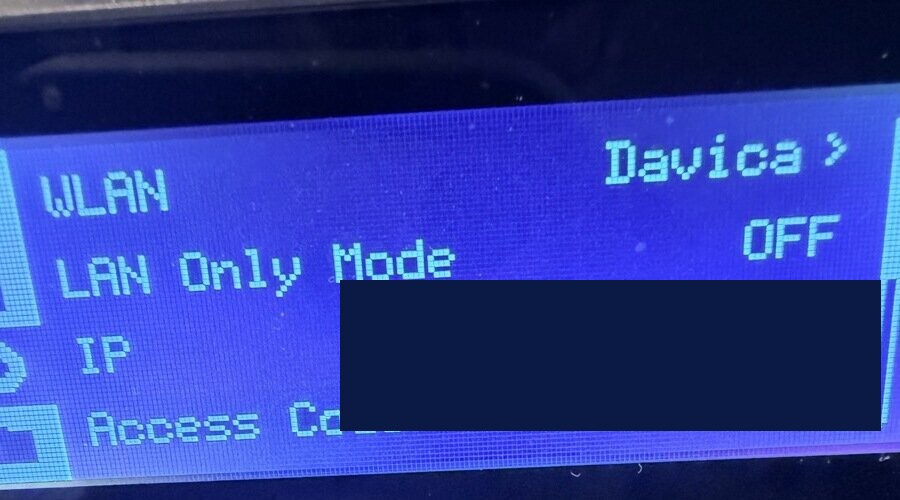
On the printer's touchscreen, go to Settings, then select the Network (WLAN) page. You should see your WiFi network name, IP address, and the LAN Only Mode toggle.
Step 2: Enable LAN Only Mode
Toggle LAN Only Mode to ON. This enables direct local network communication protocols (MQTT on port 8883 and FTPS on port 990) that this server requires.
Important: Enabling LAN Only Mode disconnects the printer from Bambu Lab's cloud services. The Bambu Handy mobile app will stop working while this mode is active. Bambu Studio and OrcaSlicer can still connect over LAN.
Step 3: Enable Developer Mode
On firmware that provides it, a Developer Mode option appears in the LAN settings. Toggle it ON. This allows third-party clients (like this MCP server) to authenticate and send commands over MQTT.
Step 4: Note the Access Code
The Access Code displayed on the network settings screen is your LAN access token. You will need this value for the BAMBU_TOKEN environment variable.
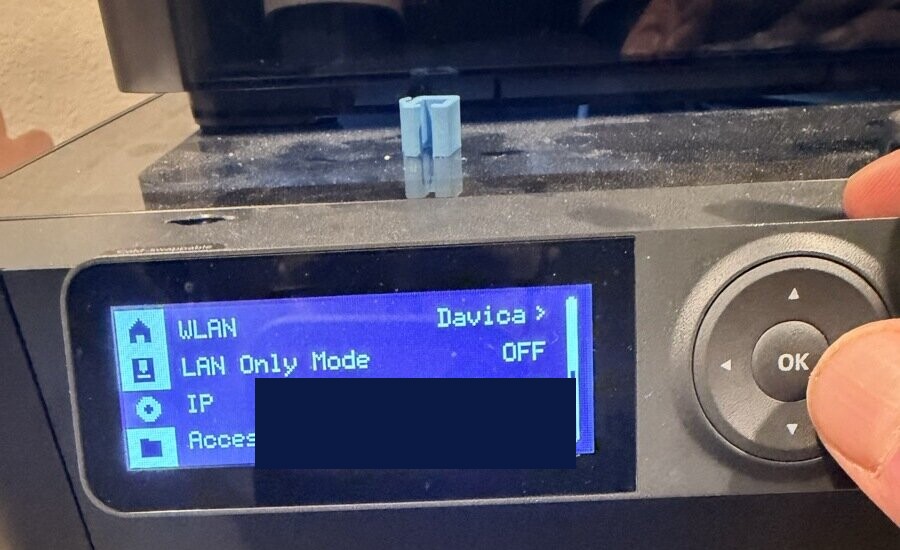
The access code can be refreshed by tapping the circular arrow icon next to it. If you refresh it, any existing connections using the old code will be disconnected and you will need to update your configuration with the new code.
Finding Your Bambu Printer's Serial Number and Access Token
Two values are required to connect directly to a Bambu Lab printer over your local network: the printer's serial number and its LAN access token (the Access Code from Developer Mode setup above).
Serial number
The serial number is printed on a sticker on the back or underside of the printer. It typically follows one of these formats:
- P1 Series: begins with
01P - X1 Series: begins with
01X - A1 Series: begins with
01A
You can also find it on the printer's touchscreen. Navigate to Settings and select the Device Info page:
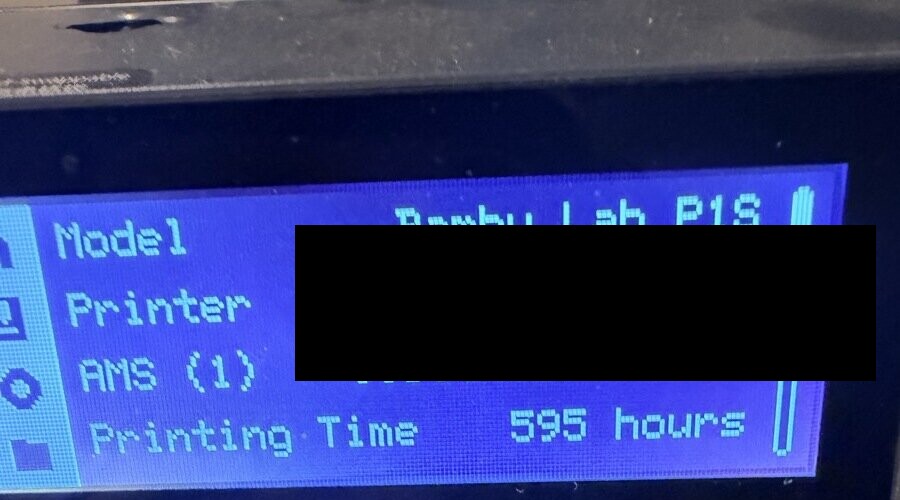
The Printer line shows your serial number. In Bambu Studio, you can also find it under Device > Device Management in the printer information panel.
LAN access token
The access token is the Access Code shown on the printer's network settings screen. It is separate from your Bambu Cloud account password. If you followed the Developer Mode setup above, you already have this value.
P1 Series (P1P, P1S):
- On the printer touchscreen, go to Settings.
- Select the Network / WLAN page.
- The Access Code is displayed at the bottom of the screen.
X1 Series (X1C, X1E):
- On the printer touchscreen, go to Settings.
- Select Network.
- Enable LAN Only Mode and Developer Mode if not already on.
- The Access Code appears on this screen.
A1 and A1 Mini:
- Open the Bambu Handy app on your phone.
- Connect to your printer.
- Navigate to Settings > Network.
- The Access Code is shown here.
"The printer rejected the print command (HMS 0500-0500-0001-0007)": Bambu firmware 01.08.05 and later only accept third-party LAN control with LAN Only Mode and Developer Mode on (Settings > WLAN on the printer). LAN Only Mode turns off cloud and Bambu Handy remote access while it is on. Otherwise start the uploaded file from Bambu Studio or the printer's screen. The rejection stays as a fatal HMS entry that blocks later prints until you clear it with clear_hms_errors or dismiss it on the printer.
"Printer nozzle 0 type is unknown or does not match the job": the file was sliced for a different nozzle material than the printer reports (a stock P1S preset assumes stainless steel). Slice again with nozzle_type or set BAMBU_NOZZLE_TYPE.
"Printer nozzle 0 flow variant is unknown or does not match the job": the file was sliced for a different nozzle flow type (Standard or High Flow) than the printer reports. Slice again with nozzle_volume_type or set BAMBU_NOZZLE_VOLUME_TYPE.
Troubleshooting: If a LAN or Developer Mode setting is missing, check the instructions for your exact model and firmware. Do not assume that a firmware upgrade is necessary or that all generations expose the same menu. The direct connection uses the printer's LAN access code, not a Bambu account password.